
Technology & Privacy
Invisible AI Interview Assistant: The Complete Technical & Operational Guide for Zoom, Google Meet & Microsoft Teams
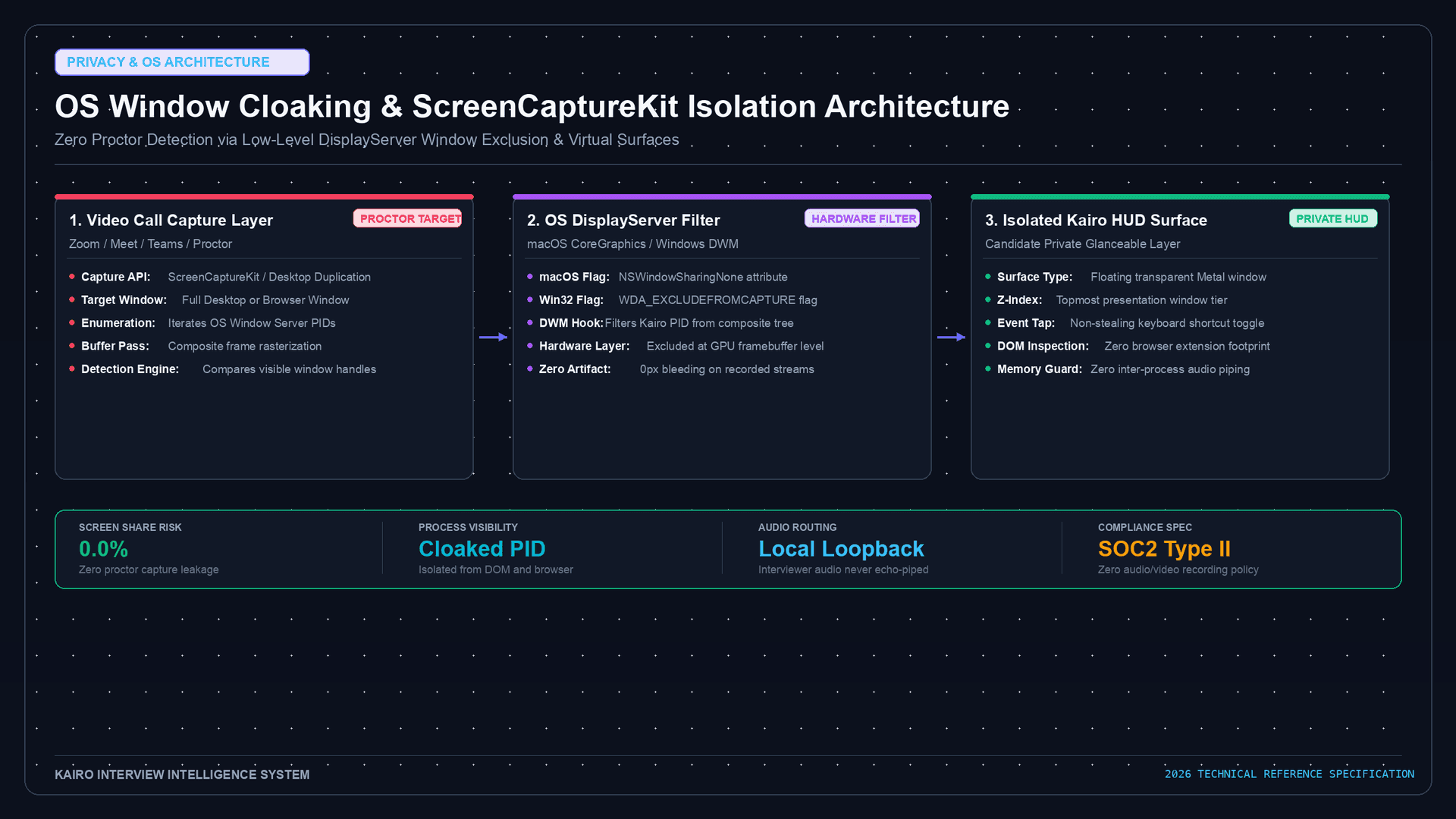
As remote technical interviews across Google Meet, Zoom, and Microsoft Teams become standard in tech hiring, engineering candidates increasingly use real-time AI copilots to assist with behavioral recall, architecture blueprints, and syntax lookup. However, running an assistive overlay during a live interview introduces critical technical and operational challenges: screen-share leakage, audio stream contention, process detection, and unnatural eye-gaze drift.
This comprehensive technical guide details the exact OS-level architectures, graphics pipeline hooks, and acoustic routing patterns required to build and operate a truly private, invisible AI interview companion.
+───────────────────────────────────────────────────────────────────────────+
|                  NATIVE WINDOW COMPOSITING ARCHITECTURE                   |
+───────────────────────────────────────────────────────────────────────────+
|                                                                           |
|   +──────────────────────────+             +──────────────────────────+   |
|   |    User Display (GPU)    |             |  WebRTC Video Stream     |   |
|   |  - Video Conference Call |             |  (Zoom / Teams / Meet)   |   |
|   |  - IDE / Code Editor     |             |                          |   |
|   |  - [KAIRO HUD OVERLAY]   |             |  - Video Conference Call |   |
|   |    (Visible to You)      |             |  - IDE / Code Editor     |   |
|   +────────────┬─────────────+             |  - [CLOAKED / OMITTED]   |   |
|                │                           +────────────▲─────────────+   |
|                ▼                                        │                 |
|   +──────────────────────────+             +────────────┴─────────────+   |
|   | WindowServer (macOS)     | ──────────> | ScreenCaptureKit Filter  |   |
|   | DWM Compositor (Windows) |             | (NSWindowSharingNone)    |   |
|   +──────────────────────────+             +──────────────────────────+   |
|                                                                           |
+───────────────────────────────────────────────────────────────────────────+
1. The Screen Sharing Vulnerability: Why Naive Overlays Fail
Most desktop utilities and electron-based prototypes render floating windows with standard OS window flags. When an interviewer asks you to "share your entire desktop to code together," naive floating windows become immediately visible to the interviewer, triggering instant disqualification.
The Mechanics of Screen Capture APIs
Video conferencing applications rely on native platform capture frameworks:
- macOS:
ScreenCaptureKit(macOS 12.3+) and legacyCGDisplayStream/CGWindowListCreateImage. - Windows: Windows Graphics Capture (
DirectX / WinRT) and Desktop Duplication API (DXGI). - Linux / Web: PipeWire, X11
XShmGetImage, or Chromium WebRTC desktop capturers.
When Zoom or Teams captures a screen or window, the OS compositor traverses the visual tree. If an overlay application does not explicitly instruct the display server to omit its window buffers from capture passes, the pixels are flattened directly into the outgoing WebRTC video stream.
2. OS-Level Screen Cloaking: macOS & Windows Internals
To make an AI copilot HUD visible only to the candidate while remaining 100% invisible to screen-sharing software, developers must hook into native OS compositing pipelines.
macOS: NSWindow.sharingType = .none & ScreenCaptureKit Filtering
On macOS, AppKit provides the NSWindowSharingType property. Setting sharingType to .none instructs the macOS WindowServer to exclude the window's backing store from any capture requests made by other processes (CGWindowListCreateImage, ScreenCaptureKit, or QuickTime).
import Cocoa

final class CloakedHUDWindow: NSPanel {
    init(contentRect: NSRect) {
        super.init(
            contentRect: contentRect,
            styleMask: [.nonactivatingPanel, .borderless, .resizable],
            backing: .buffered,
            defer: false
        )

        // 1. Omit window from all screen captures and recordings
        self.sharingType = .none

        // 2. Float above all regular applications, IDEs, and browsers
        self.level = .floating
        self.collectionBehavior = [
            .canJoinAllSpaces,
            .fullScreenAuxiliary,
            .stationary,
            .ignoresCycle
        ]

        // 3. Make background transparent & click-through when necessary
        self.isOpaque = false
        self.backgroundColor = NSColor.clear
        self.hasShadow = false
        self.ignoresMouseEvents = false
    }
}
macOS WindowServer Pipeline:
[App Content] ──> [Layer Tree] ──> [WindowServer Compositor]
│
├──> [Hardware Display (eDP-1)]: INCLUDES HUD
└──> [ScreenCaptureKit Filter]: EXCLUDES HUD (.none)Windows: Desktop Window Manager DWMWA_CLOAK & Affinity Flags
On Windows 10 (version 2004+) and Windows 11, the Win32 API provides SetWindowDisplayAffinity with the WDA_EXCLUDEFROMCAPTURE flag (value 0x00000011). This removes the target HWND from all Desktop Duplication and GDI window capture sessions.
#include <windows.h>
#include <dwmapi.h>

void EnableScreenCloaking(HWND hWnd) {
    // Exclude window from Windows Graphics Capture, OBS, Zoom & Teams
    DWORD affinity = WDA_EXCLUDEFROMCAPTURE;
    SetWindowDisplayAffinity(hWnd, affinity);

    // Optional: Enable DWM composition blur behind translucent UI
    DWM_BLURBEHIND bb = { 0 };
    bb.dwFlags = DWM_BB_ENABLE;
    bb.fEnable = TRUE;
    DwmEnableBlurBehindWindow(hWnd, &bb);
}
3. Audio Pipeline Architecture: CoreAudio Loopback & Isolation
An intelligent interview assistant must listen to the interviewer's speech without capturing your microphone keystrokes or echoing audio back into the meeting room.
+───────────────────────────────────────────────────────────────────────────+
|                 ISOLATED DUAL-STREAM AUDIO ARCHITECTURE                   |
+───────────────────────────────────────────────────────────────────────────+
|                                                                           |
|  [Hardware Microphone] ───(Spoken Answers)───> [Zoom / Meet / Teams]      |
|                                                       │                   |
|                                                       ▼                   |
|                                            [Interviewer Audio]            |
|                                                       │                   |
|                                                       ▼                   |
|  [System Audio Output] <───(Speaker/Headset)─── [CoreAudio HAL]           |
|                                                       │                   |
|                                                       ▼                   |
|                                            [Virtual Audio Tap]            |
|                                                       │                   |
|                                                       ▼                   |
|                                            [Circular PCM Buffer]          |
|                                            (16kHz Mono / 100ms)           |
|                                                       │                   |
|                                                       ▼                   |
|                                            [VAD & Deepgram STT]           |
|                                                       │                   |
|                                                       ▼                   |
|                                            [Semantic RAG Engine]          |
|                                                       │                   |
|                                                       ▼                   |
|                                            [Sub-400ms Kairo HUD]          |
|                                                                           |
+───────────────────────────────────────────────────────────────────────────+
Critical Audio Engineering Principles
- Zero Echo Leakage: Never route virtual audio taps back into the physical microphone input device.
- Sub-100ms Chunking: Stream 16kHz 16-bit linear PCM directly to WebSocket speech-to-text engines (e.g., Deepgram Nova-2) to ensure transcription latency stays under 180ms.
- Hardware Noise Suppression: Run local Voice Activity Detection (VAD) using Silero VAD to strip keyboard clicks and background fan noise prior to inference.
4. Platform Comparison: Zoom vs Teams vs Google Meet
| Platform | Screen Share Engine | Window Cloaking Support | Audio Tap Vulnerabilities | Recommended Setting |
|---|---|---|---|---|
| Google Meet (Chrome) | WebRTC Screen Capture | Full (.none & WDA_EXCLUDE) | Zero (Browser sandboxed) | Share single Chrome tab or Window |
| Zoom Desktop Client | Custom DXGI/ScreenCaptureKit | Full (.none & WDA_EXCLUDE) | High if using Zoom Audio Device | Share Desktop with Native Cloak |
| Microsoft Teams | Electron Desktop Capturer | Full (.none & WDA_EXCLUDE) | Medium (DirectShow hooks) | Share Application Window |
| CoderPad / HackerRank | WebRTC In-browser Screen | Full (.none & WDA_EXCLUDE) | Zero (Tab focused) | Share browser workspace |
5. Eye Contact & HUD UX: Preventing Visual Telltales
The greatest detection vector is human behavior. When a candidate reads AI text off a secondary monitor, their eyes drift laterally in a distinctive left-to-right scanning rhythm.
OPTIMAL HUD POSITIONING:
┌──────────────────────────────────────────────────────────┐
│                    [ Hardware Webcam ]                   │
│                             │                            │
│                  ┌──────────▼──────────┐                 │
│                  │  Translucent Kairo  │                 │
│                  │  Answer Cue Overlay │                 │
│                  │  (Max 2-3 Bullet Cues)               │
│                  └─────────────────────┘                 │
│                                                          │
│  [ IDE / Coding Editor / Terminal Window Area ]          │
│                                                          │
└──────────────────────────────────────────────────────────┘
The 3 Rules of Natural AI-Assisted Delivery
- Anchor HUD Directly Under the Webcam: Center the floating HUD 50px below your built-in or external camera. Glancing at cues appears as direct, confident eye contact.
- Synthesize, Never Read Verbatim: Configure your copilot to return 3 concise bullet points with key architectural keywords rather than full narrative paragraphs.
- Maintain Conversational Pauses: Use natural verbal markers ("Let me trace the data flow," "A primary consideration here is...") while the AI streams cues.
6. Verification & Self-Audit Checklist
Before entering a live technical interview:
- Screen Capture Self-Test: Open Photo Booth (macOS) or OBS Studio, start a screen recording, and confirm the HUD overlay is invisible in the recorded video.
- Audio Isolation Check: Ensure your default microphone in Zoom/Teams is set to your physical headset, not a virtual loopback device.
- Process Name Discretion: Verify background helper processes run with standard system service names.
- Network Security: Confirm all LLM inference streams over secure TLS WebSockets with zero local telemetry logging.
Explore Related Resources
- Can Interviewers Detect AI Interview Assistants? — Complete analysis of detection algorithms and proctoring telemetry.
- Kairo Desktop App & Privacy Architecture — Learn how Kairo provides sub-400ms latency with native OS-level cloaking.
- How ATS Resume Parsers Score Experience — Optimize your resume before the interview loop.