Technology & Practice
Screen Share Privacy in AI Interview Assistants: OS-Level Window Exclusion on Zoom, Meet, and Teams

The most common candidate concern about using an AI interview assistant during a video interview is not the tool's quality — it's whether the assistant's window will appear on the interviewer's screen.
This is a legitimate engineering question. Video conferencing platforms capture screen content in different ways, and a careless implementation of an interview overlay can appear in shared-screen mode. Understanding how screen capture works at the OS level — and how responsible AI copilots handle it — is useful whether you're a candidate or an engineer building these tools.
How Video Conference Screen Capture Works
Zoom, Google Meet, Microsoft Teams, and Webex each implement screen sharing through OS-provided capture APIs. The specific mechanism matters.
macOS: ScreenCaptureKit and Window Exclusion
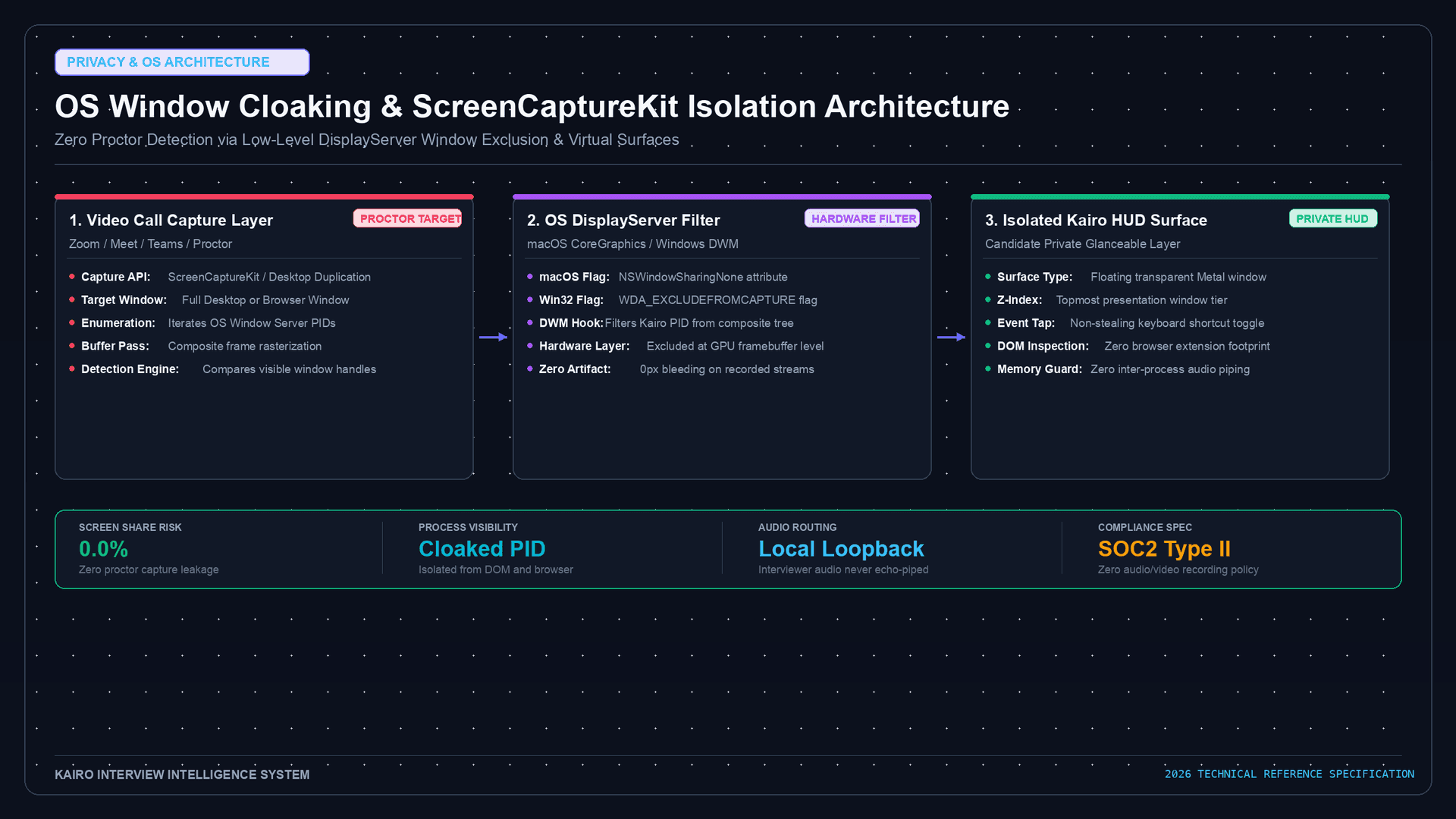
On macOS Monterey and later, modern applications use ScreenCaptureKit (introduced in macOS 12.3). This API provides fine-grained control over what is captured — and critically, allows windows to exclude themselves from capture entirely.
The key property is SCShareableContent combined with SCContentFilter. An application can enumerate all windows, filter specific windows or applications out of the capture stream, and apply the filter to the capture stream that Zoom, Meet, or Teams is consuming.
From the excluded application side (e.g., Kairo), the tool sets window properties signaling to ScreenCaptureKit that the window should not appear in capture streams. From the capturing application side (e.g., Zoom), the captured stream reflects whatever the filter allows.
The legacy API — CGWindowListCopyWindowInfo — predates ScreenCaptureKit and does not offer the same exclusion capabilities. Applications on older macOS versions (pre-Monterey) need alternative approaches, including the CGSSetWindowSharingState private API or display isolation.
macOS: Stage Manager and Display Isolation
A simpler, no-API approach: run the AI copilot on a secondary display that is not the source of screen sharing. When a candidate shares "Screen 1" (primary display with the video call), an assistant running only on Screen 2 is never captured.
Stage Manager on macOS Ventura+ enables a related pattern: window groups can isolate the copilot into a separate group that is visually distinct and not in the active capture window hierarchy.
Windows: Virtual Desktops
Windows 10/11 virtual desktops provide natural isolation:
- Candidate joins video call on Desktop 1
- AI copilot runs on Desktop 2
- Candidate shares a specific window or Desktop 1 in Zoom or Teams
The copilot on Desktop 2 does not appear in the capture stream for Desktop 1. The limitation: Teams' "Share entire screen" mode on some Windows versions captures all virtual desktop output. "Share a window" mode is safer for isolation.
Windows: DWMWA_CLOAK Window Attribute
The Desktop Window Manager API provides DwmSetWindowAttribute with the DWMWA_CLOAK attribute. Setting this attribute on a window removes it from the composited display frame — it is not captured by standard screenshot APIs or screen share capture.
// Win32 API — sets the window as invisible to capture
BOOL cloaked = TRUE;
DwmSetWindowAttribute(hwnd, DWMWA_CLOAK, &cloaked, sizeof(cloaked));
This is the Windows equivalent of the macOS window exclusion approach. It works across Zoom, Meet, and Teams because all three use standard screen capture APIs that respect the DWM compositing layer.
How Each Conferencing Platform Captures
Understanding the conferencing platform's capture method is as important as the OS mechanism.
Zoom
Zoom offers three sharing modes:
- Share entire screen — captures the full display via OS capture API. Window exclusion APIs apply and are respected.
- Share a window — captures a specific window ID only. Other windows are never in scope.
- Share a portion — captures a screen region. Depends on whether the copilot's window overlaps the selected region.
Zoom on macOS (v5.10+) uses ScreenCaptureKit on compatible OS versions. Windows with the exclusion attribute set are excluded from ScreenCaptureKit capture streams.
Google Meet
Meet's browser-based sharing uses the Web Screen Capture API (getDisplayMedia). The user selects a tab, window, or screen. A native overlay like Kairo running as a desktop app would not appear in a "Chrome tab share" — browser-based capture does not capture native desktop windows outside the browser. Full-screen capture through Meet in Chrome does go through OS-level APIs, where exclusion flags apply.
Microsoft Teams
Teams (new Teams, released 2023+) uses OS capture APIs on both platforms — ScreenCaptureKit on macOS, Windows Graphics Capture API (WGC) on Windows. Both APIs respect window exclusion signals at the OS level.
Teams Classic on older Windows versions used DXGI Desktop Duplication, which captures at a lower level and may not respect all DWMWA_CLOAK implementations. Candidates on older Teams versions should verify isolation using the "share a specific window" mode.
What Candidates Should Do Before Each Interview
Regardless of what the tooling promises, verify your own setup:
Step 1: Open a second browser tab and start a Google Meet with yourself (or a test account).
Step 2: Share your screen (entire display, not just a window).
Step 3: Look at the "what the other person sees" preview tile in Meet.
Step 4: Open Kairo's overlay on the same screen and confirm it does not appear in the preview tile.
If it appears, switch to display isolation (move the copilot to a secondary monitor) or use window-specific sharing instead of full-screen sharing.
This verification takes under 60 seconds and eliminates uncertainty before a high-stakes call.
A Note on Ethical Disclosure
Screen privacy technology serves a legitimate purpose: it ensures candidates can use ambient preparation tools without accidentally disclosing them before they've decided whether or how to do so.
This is different from using screen privacy to deceive. If a candidate uses an AI copilot during an interview, they carry the ethical responsibility of understanding their employer's policy and making informed choices. The technology does not absolve that responsibility — it just ensures the technical setup doesn't force a disclosure decision prematurely.
A well-configured interview copilot that stays off the shared screen is a tool that respects the candidate's agency. What the candidate does with that agency remains their choice.
Responsible AI interview tools can and do stay off shared screens using well-documented OS APIs. Candidates who verify their setup before each session can be confident in their configuration. Test it before every interview. Trust but verify.
Secure, Private AI Scaffolding for High-Stakes Calls
Explore how Kairo implements native OS window isolation and non-invasive visual HUD overlays:
- Private by Design Architecture: Learn how native window cloaking works on Kairo Live AI Interview Copilot.
- Review Security & Ethical Standards: Check our strict compliance commitments on the Kairo Security Policy and Responsible Use Guide.
- Transparent Tiering & Setup: Review setup requirements and plan tiers on Kairo Pricing.
- Related Deep-Dives: